
For UFS ONLY - Building Display Boards

Notecard and Linkset Data Architecture
The entire platform is loaded from notecards into Second Life's new Linkset Data Architecture, resulting in blistering fast paging and navigation. Each Linkset Database can have 128K of data, resulting in a Display Board showing over 100 pages with up to 1000 button definitions.
Pages and Panels
The UFS version of the display system has two panels per page. Other versions can have more panels.
When a page is set, all the panels are set to either a Texture or a Template.
Pages and their panels are defined in a single notecard that identifes:
When a page is set, all the panels are set to either a Texture or a Template.
- Texture - This is just a picture that contains no buttons.
- Template - A picture with one or more buttons. (Templates are described later)
Pages and their panels are defined in a single notecard that identifes:
- Page Name - An internal name used to identify a page.
- Panel 1 - Texture UUID or a notecard name containing a template.
- Panel 2 - Texture UUID or a notecard name containing a template.
Defining the Pages - Creating a "!Pages" Notecard
Create a Google Spreadsheet to specify a page name with a brief description. Get agreement on the arrangement you want before designing or reusing any graphics. Important! Graphics creation is the most time-consuming part of this process, accounting for 95+% of the time needed. Upfront decisions about the graphics will help to avoide graphics rework later.
Note: Except for the first page listed in the "!Pages" notecard, the order of the rest is meaningless. The first listed page is the one always shown first!
Step One: Create a name and description for every page you want to build. The description exists to describe what the page looks like without an accompanying picture. Once a picture is selected or drawn, it provides the graphics designer with additional information about the page needed.
Note: Except for the first page listed in the "!Pages" notecard, the order of the rest is meaningless. The first listed page is the one always shown first!
Step One: Create a name and description for every page you want to build. The description exists to describe what the page looks like without an accompanying picture. Once a picture is selected or drawn, it provides the graphics designer with additional information about the page needed.
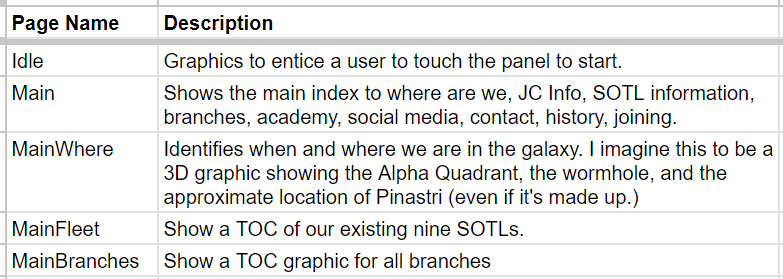
Step Two: Figure out which panels or templates you need for each page. If it's a UUID, as shown below, then it's just a texture. If it's a name, then this refers to a notecard that describes a template. For example, the FleetTOC template below, is a single image showing the UFS fleet. On that panel, there will be buttons for selecting each ship.
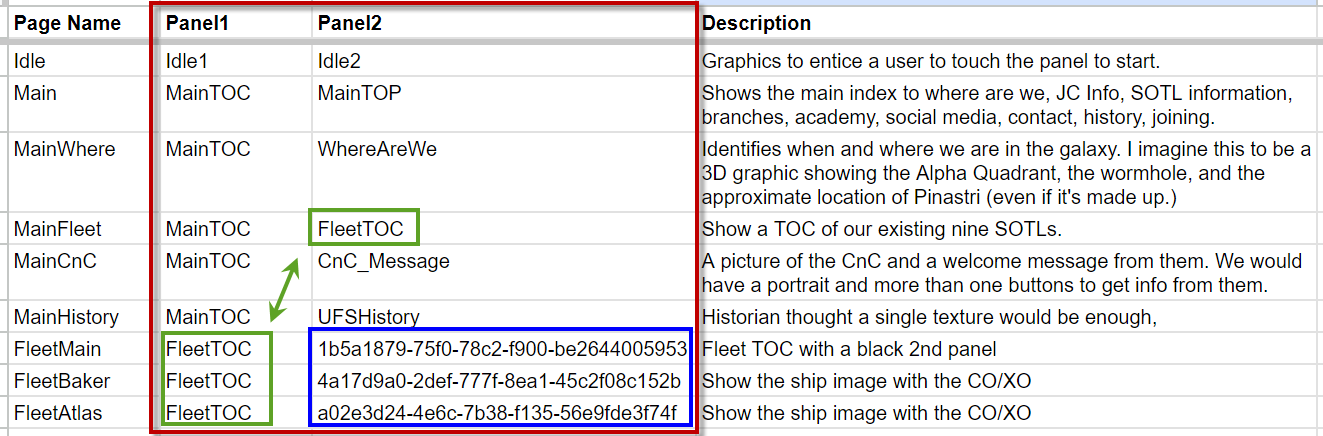
We've added two columns (Red Box), Panel1 and Panel2. A few things to notice:
Critical "Template" Requirement!
When a panel names a Template, there must be an identically named notecard when "!Pages" is loaded.
- The same named Template, in this example, can be reused, such as FleetTOC or used on either panel on a page.
- The blue box shows pictures of each of the ships.
Critical "Template" Requirement!
When a panel names a Template, there must be an identically named notecard when "!Pages" is loaded.
!Pages
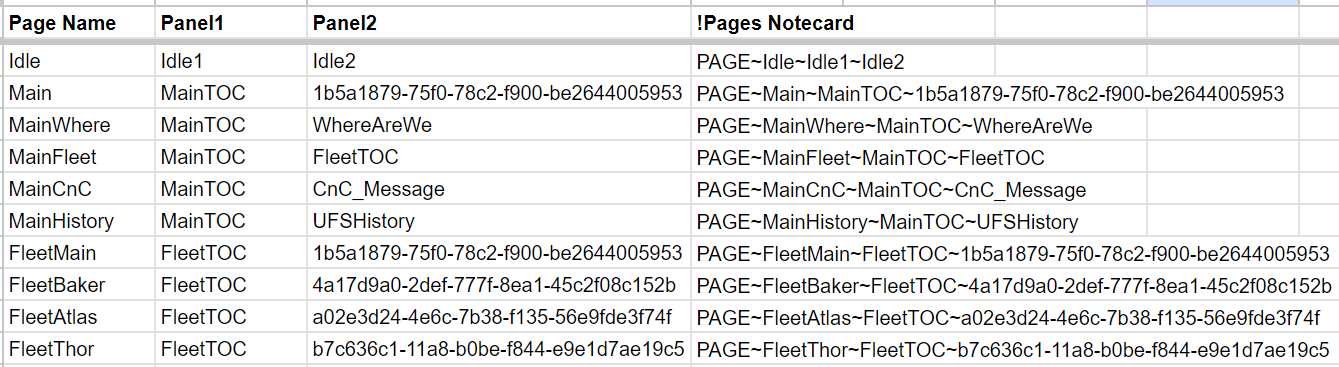
Step Three: Create !Pages. A simple concatenation will allow you to generate the lines that "!Pages" expects. Note that it starts with PAGE and uses tilde symbols (~) to separate the parts.
Templates
When you want a texture to have buttons, you need to create a template. A Template describes:
Each Template Button:
Slideshows
- The texture to display
- A set of buttons to touch
- An optional slideshow of images. (usually not used)
Each Template Button:
- is a touchable region of a texture. It comprises one or more touchable spots on a 24x24 grid. When an avatar touches any of these spots, it triggers the button.
- A button can be programmed to do different things, such as:
- Change the page
- Change a panel
- Give out inventory
- Send message on any channel to external objects
- Display a Dialogue message that contains up to 500 characters of text. That text is used along with HTTPS, SLURLs or URIs to provide links to additional information.
Slideshows
- This feature allows you to show up to 25 images using a list of UUIDs.
- New photos appear every 10 seconds.
- Image caching. The following picture of a slideshow is preloaded so that it appears instantly without the blurry fade-in.
Creating a Template
Each Template is stored in a single notecard. If the pages shown above where the only pages in the !Pages notecard, then you'd need seven additional notecards for each of the template: Idle1, Idle2, MainTOC, FleetTOC, WhereAreWe, CnC_Message, and UFSHistory.
When creating Template, besides the texture, you must decide what buttons exist on the page. We use a spreadsheet to create this initial definition. It will have three columns—the button name, function and parameters.
The MainTOC Panel has this structure. There are three allowed types:
Button Columns:
When creating Template, besides the texture, you must decide what buttons exist on the page. We use a spreadsheet to create this initial definition. It will have three columns—the button name, function and parameters.
The MainTOC Panel has this structure. There are three allowed types:
- TEXTURE identifies the background texture by its UUID.
- BUTTON describes what a touchable area does.
- SHOW (not shown) consists of 2 to 25 comma-delimited UUIDs representing textures in your show.
- The show starts 10 seconds after the page is shown and changes to a new texture every 10 seconds.
- Note, if setting a SHOW, then BUTTON is typically not used. If you use a button, the touchable spot is the same for all images.
- The show starts 10 seconds after the page is shown and changes to a new texture every 10 seconds.
Button Columns:
- Template - The name of the notecard this definition will be stored.
- Button Name - This is an internal name. The editor primarily uses it as a dialogue button, so it should be 12 characters or less. See below for how the button name is used. A visitor does not see the button name.
- Function - This is the function's name to start when touching the button. These functions are supported:
- PAGE - Changes the page. When you change the page, you set all the panels at once.
- PANELS - Allows you to change one or more panels manually. Used in special cases.
- GIVE - Send inventory to the display board user. Inventory comes from an external object. It's easier to manage updated objects through this external.
- MSG - Send a message on any channel. They were used for linking external objects to the display board. This is how GIVE works, it sends a message on external channel with the user's key and inventory name.
- DIALOG - Send a textual message to the board user. Typically, this message contains a URL (such as, "Here's our Facebook page https://" or the SL-based URI or SLURL links along with text to identify what it is.
- Note: If you specify a SLURL with no extra text, it opens the MapDestination panel instead.
- Parameter - Information the function needs to operate.
- Notecard - This is what the corresponding line will look like in the notecard. A sheet =Concatenation().
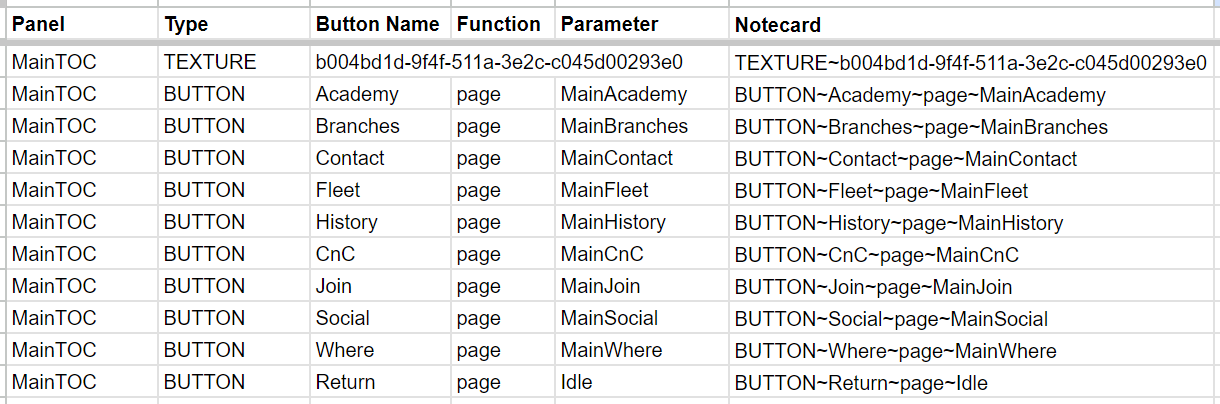
For example, if a user touches the texture where the CnC button is shown, then the system will change the page to "MainCnC". If we look above "MainCnC" sets two panels:
- MainTOC
- CnC_Message
Next steps ...
The Button Mapping page demonstrates how to map the positions of these buttons to their location on a texture.